3D Model Export Scripts - Blender
We have created an export script for models in Blender to make sure the exported visual and collision models are aligned in Sandbox.
Preparing the models for upload using Blender
To make sure models uploaded to the 3D Models works as intended with collision there is a few requirements for the setup of the model. The script below is made to ensure that this is as easy as possible for the user.
Blender Script
Download the Script
Script info:
Name: SBX Model Importer - Exporter
Category: Export
Version: (1, 0, 0)
Author: OSC
Description: Exports Visual and Collision models to Sandbox Model Importer
Installing the export script
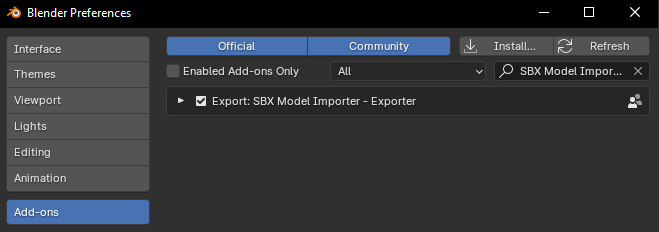
Open Blender (tested in 4.1)
Go to
Edit>Preferences>Add-ons.Click
Install...and select the MI_exporter.py file.Ensure the addon is enabled by checking the box next to its listing.
Exporting your model from Blender
Please read the instructions below carefully. Not following these rules can result in unexpected results, in particular with collision models.
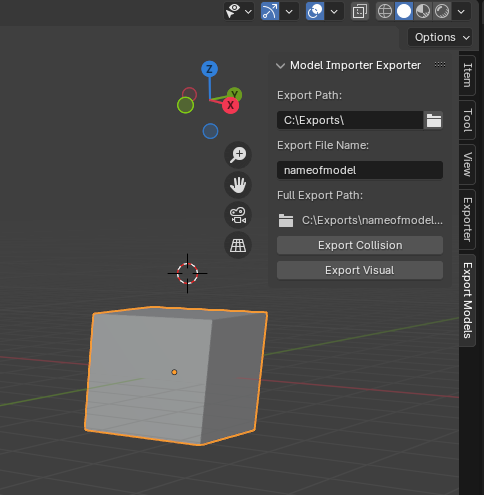
Open the 3D Viewport.
Press
Nto open the sidebar if it’s not already visible.Find the
Export Modelstab.Set the
Export PathandExport File NameSelect the 3d model you want to export. Make sure the model follows the following rules:
The visual model and the collision model can be the same model or 2 separate models, but only one single mesh object can be selected on export.
The model cannot be part of a hierarchy (it cannot have a parent)
Reset transforms (scale and rotation)
This can be done with
Apply All Transformations. This makes the current pose of the object its new default state (scale, rotation and transform).
Set the pivot point of the object to the desired location and make sure it’s aligned to the world
Collision models should not contain a lot of unnecessary polygons since this will affect performance.
Collision models should not have a material assigned.
Make sure the visual model and collision model use the same pivot point with the same local rotations
Click
Export Collision/Export Visualdepending on which model you have selected.Make sure you do not rename the files between export of Collision and Visual model. They need to have the same name.
Import Model into Sandbox
Once your 3D model is properly exported in Blender using the export script, you can proceed to upload your model using the 3D Models system for Cloud.