Edit Title and Subtitle
Use titles and subtitles to add descriptive text to your scenarios. This helps identify what is happening in a given scene, especially if you have many scenarios. Titles and subtitles can be found inside the Header element under Scenario Elements.
Accessing Data View


Opening the Title and Subtitle editor
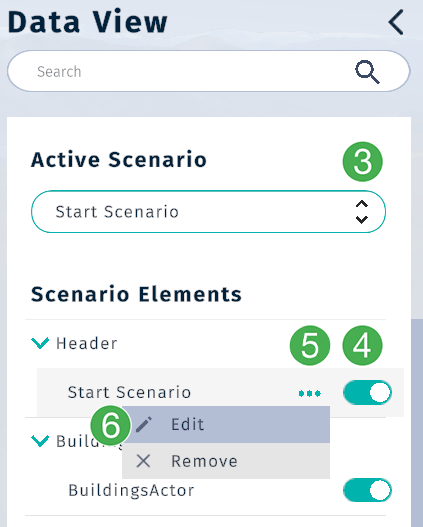
Select the scenario for which you want to edit the title or subtitle.
Toggle the visibility of the header by clicking the toggle button. Headers are not visible by default.
Place your mouse cursor over the current name of the selected scenario. Press the
...to open the context menu.Click
Editto enter edit mode.
Edit title and subtitle
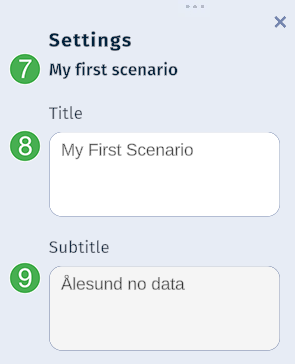
Name of active scenario.
To edit the title, click in the title text box and write your new title.
To edit the subtitle, click in the subtitle text box and write your new subtitle.
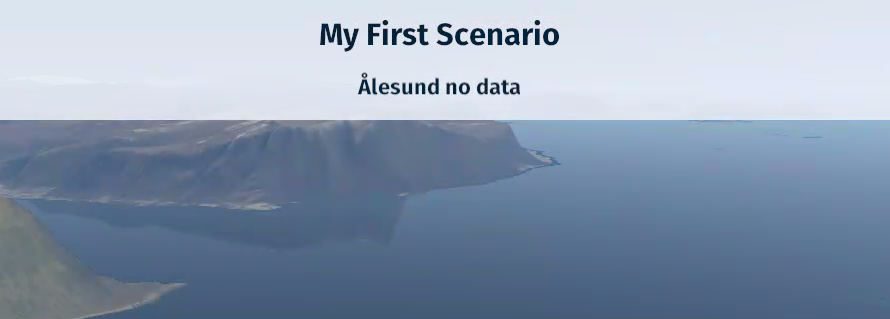
Title and subtitle as displayed in a scenario after the edit:
Tip
Title and Subtitles can be a great way to add context to your scenarios and stay organized.