Datasets
Bringing various datasets into Sandbox offers significant advantages for users seeking to analyze and understand complex information visually. By importing datasets, users can leverage Sandbox’s powerful visualization tools to explore data patterns, trends, and relationships in an interactive environment. This approach enables more intuitive insights, making it easier to communicate findings and support decision-making processes.
It’s important to note that Sandbox is designed primarily for visualizing datasets, not for creating or editing them within the platform. Users should prepare and curate their datasets externally before importing them into Sandbox. Once imported, the platform provides a range of visualization options that help users interpret their data effectively, whether it’s for presentations, collaborative projects, or in-depth analysis.
By focusing on visualization, Sandbox streamlines the process of turning raw data into meaningful graphics and interactive elements. This specialization ensures that users can concentrate on understanding and sharing their data, without the complexity of data creation or manipulation within the tool itself.
Datasets Library
The Datasets Library in Sandbox provides a central location for managing all your datasets. Within this area, you can upload new datasets from your computer, download existing datasets for offline use, and delete datasets you no longer need. Datasets are displayed in a list, making it easy to browse and locate specific ones. You can quickly filter datasets by typing in the search box, and navigation controls allow you to move between pages when your library grows large.
Accessing Datasets Library
From the left-side Assets menu, left-click

Datasets. Please review the Asset Library Overview for information about viewing and managing assets in the Assets library.
Note
If a scene is currently running, exit Sandbox by pressing the
 icon located at the lower right corner.
Uploading Datasets
At the top right corner, left-click
the
 button. The upload dialog is now displayed: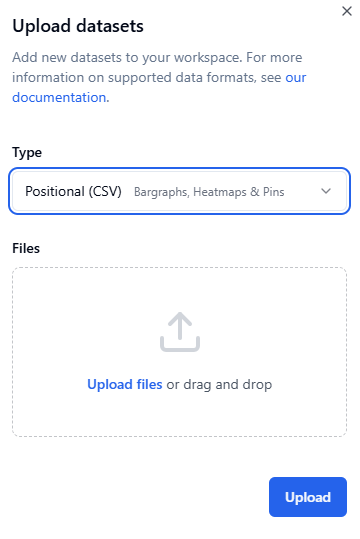
It is important that the correct dataset type is selected from the
Typedrop-down menu. Failure to set correct dataset type will make Sandbox unable to interpret the data. Available options are:Dataset
Format
Positional
CSV
Lollipop
CSV
Static Ribbon
SHP
Building Color
SHP
Population & Business Grid
GML
Road Network
XML
Map Overlay
GML
Drag and drop your file(s) onto the window, or click the
Upload fileslink to select your file(s) from your computer.

Once a dataset is uploaded, it will be listed at the top of the list of assets.
Note
Review the Data Visualization section for how to create various datasets for Sandbox.