Add Object
The add object menu can be used to add buildings, people, and other types of objects into the scene.
Accessing the Add Object menu


Adding an object
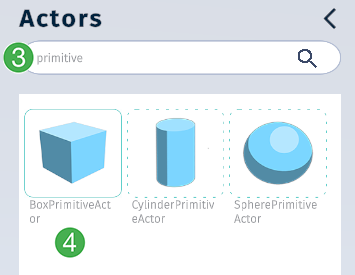
Search for objects by name. Keep in mind that only objects within the current folder are shown in a search. To search all objects, navigate to the root folder first.
Select the model to add, then drag and drop it to the desired position. To navigate to a previous folder, use the back arrow
<at the top of the menu.
Placing an object
When dragging an object from the menu, a small loading symbol appears until the loading is complete. Then, the placeholder icon is replaced with the actual ghost model.
Pointing the ghost model at the terrain or ocean assigns the 3D model a position in world space, rather than relative to a parent object. The bottom center of the 3D model maps to the point where the pointer hits in real time.
Hitting a point further back positions the 3D model further back in the scene, making it appear smaller.
If the bottom of the 3D model’s bounding box intersects with another object, the intersected object is highlighted in red.
If the pointer hits an object while hovering with the 3D model, the object that would become its parent is highlighted.
Manipulating an object
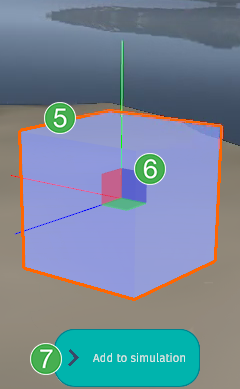
The model appears as a transparent “ghost”. The orange outline shows the currently selected model.
Transformation gizmos: translation, rotation, and scale (
W,E,Rkeys). Only primitives can be scaled at this time.When ready, click
Add to simulationto finalize.
Deleting an object
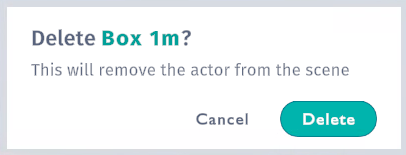
Press
Delkey or use context menu to delete. A confirmation prompt appears:Press
Deleteto proceed orCancelto abort and keep the object.

It is also possible to delete an object by right-clicking on the object and clicking on the object’s name:
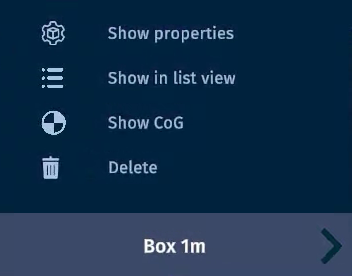
From the context menu, click the
Deletebutton:You will then receive the same prompt described above that asks for confirmation before proceeding with the deletion of the object.
Using Transformation Gizmos
The translate, rotate, and scale gizmos are bound to the W, E, and R keys respectively.
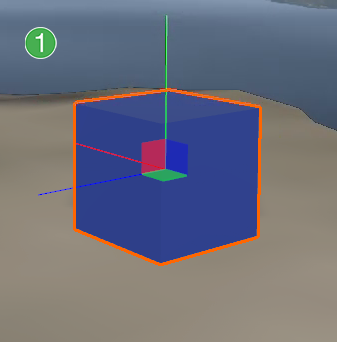
The translate gizmo can be used to move the added object. Drag the arrows to move the object in a single axis. Alternatively, drag the colored panels to move the object in two axes at the same time.
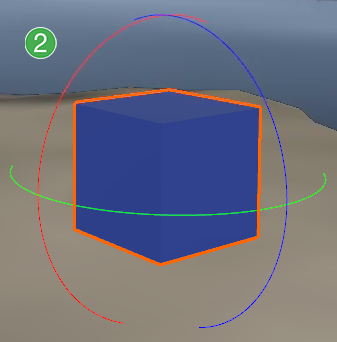
The rotate gizmo rotates the object along one of the selected circles. Click and drag on a circle to rotate. Hold
Ctrlon your keyboard if incremental rotation is needed.
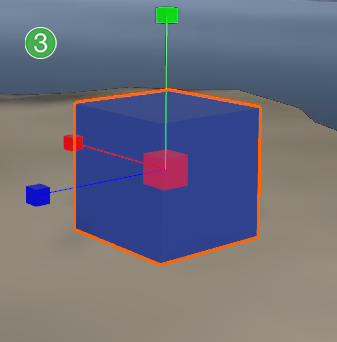
The scale gizmo scales the object along one or two axes at the time. Click and drag the colored boxes to scale in a single axis or drag the colored triangles to scale in two axes at the time.
Tip
Holding down Ctrl while manipulating the gizmos will enable snapping to a grid.
Adding Geo-referenced IFC objects
Geo-referenced models can automatically be placed based on the location data embedded in the models. Geo-referenced models will have a globe added to the top right corner of the icon. Left clicking on this sphere will give you the option to add the object via geo-referencing.