Properties Panel
The properties panel is located vertically along the right side of the screen and appears when an object is selected in Sandbox. This panel provides all the settings for a given object and allows you to fine tune an object’s properties.
Sections
The panel is divided into four groups which can be expanded or collapsed:
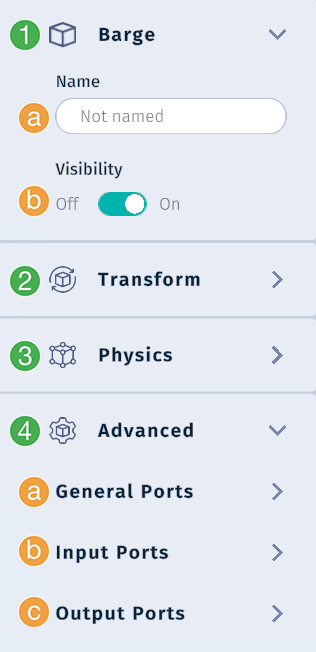
Current name of the selected object:
Name: Enter a new name for the object to make it easier to find when searching.
Visibility: Turn visibility for the object in Sandbox on or off. This is separate from the visibility toggle in the Data View.
Transform: Change the Coordinate System for the object, and/or enter numeric values for Location, Orientation, and Scale.
Physics: Specify the mass of the object.
Advanced: Organized in three sections:
General Ports: Information about the object’s name, type, parent, and id. You can enter another object’s id into the parent id port to make the current object a child of that object.
Input Ports: Main area for configuring an object. Ports depend on the object selected. Configure and operate Constraints or a Add Wire winch node here.
Output Ports: Display output values from a simulation. For certain objects, you can modify values such as a primitive’s color or a wire’s diameter. Color can be specified as Hex or RGB values.